If you cannot boot your Rok Box, or if Windows has issues which stop your system from properly booting, you can perform a Windows System Restore to roll your system back to a previous date before the issue you're experiencing was present.
TABLE OF CONTENTS
- What is System Restore?
- How to manually create a Windows Restore Point
- How to recover your PC using Windows System Restore
- Steps to restore your PC if your PC will boot into Windows
- How to use Windows System Recovery if your PC will not boot into Windows
What is System Restore?
A Windows System Restore retains your personal files on your OS drive, as well as installed applications, and can help to troubleshoot and resolve stability, performance, or boot issues with your PC.
System restore points are created automatically, generally when you install new updates or software. It is enabled automatically on your PC when it is built. If you disable this feature, you will not be able to use System Restore.
How to manually create a Windows Restore Point
Click Start, then type: System Restore.
Click the found item, System Restore.
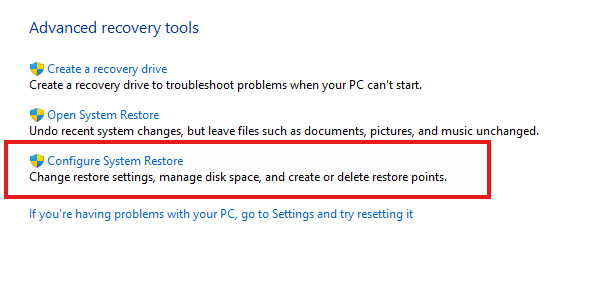
In the resulting Window, click "Configure System Restore":
 Then, click the "Create" button in the resulting Window after selecting your C: drive:
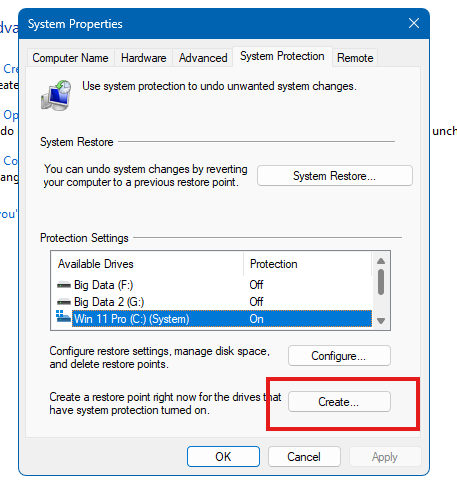 A new restore point will be created. You may close the dialog boxes once this process is complete, and use your PC as normal.
How to recover your PC using Windows System Restore
You will need a Windows Recovery USB or a Windows installation USB.
If you opted to have a Windows Recovery USB included with your Rok Box, you may utilize that USB drive for this process.
If you did not opt to have this drive included with your PC, you may create a Recovery USB from your Windows installation (if your PC is bootable), or from another Windows-based PC (if your PC will not boot into Windows).
Click here for instructions on how to build a Windows Recovery USB
Steps to restore your PC if your PC will boot into Windows
- Click Start.
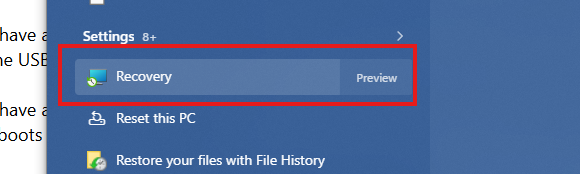
- Type: Recovery. Click the found item in the list:
Click "Open System Restore":
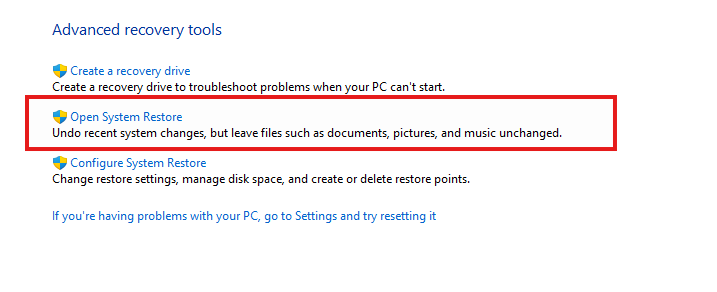
Follow the onscreen instructions to restore from the most recent restore point, or choose a different restore point if you know that the issue you're experiencing happened after the most recent restore point.
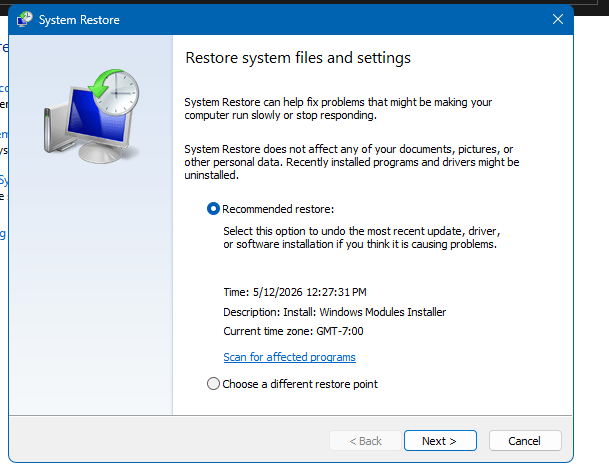
Follow instructions and the restore process will proceed, complete, and reboot your PC.
Then, test for the issue you were troubleshooting to confirm it is resolved.
How to use Windows System Recovery if your PC will not boot into Windows
- Plug the recovery drive into a USB port on your PC.
- Power the PC on and press and hold the F7, F11, and F12 keys on your keyboard.
- This will display the boot selection option prior to Windows booting.
- Use the arrow keys on your keyboard to select the USB thumb drive from which to boot.
- The Windows recovery USB will boot, which may take 2-3 minutes.
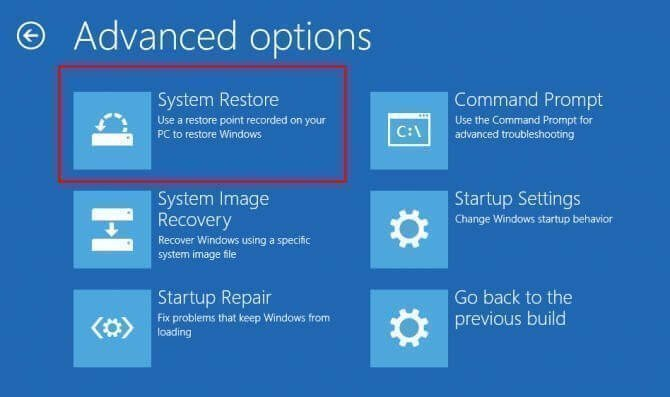
Follow the onscreen instructions to restore from the most recent restore point, or choose a different restore point if you know that the issue you're experiencing happened after the most recent restore point.
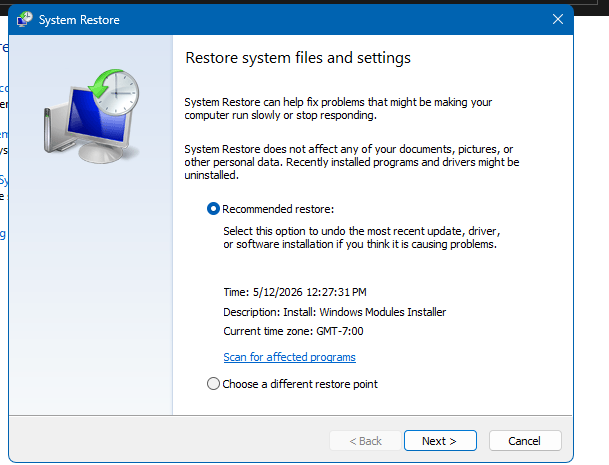
Follow instructions and the restore process will proceed, complete, and reboot your PC.
Then, test for the issue you were troubleshooting to confirm it is resolved.
Was this article helpful?
That’s Great!
Thank you for your feedback
Sorry! We couldn't be helpful
Thank you for your feedback
Feedback sent
We appreciate your effort and will try to fix the article