Run a Windows MemoryTest
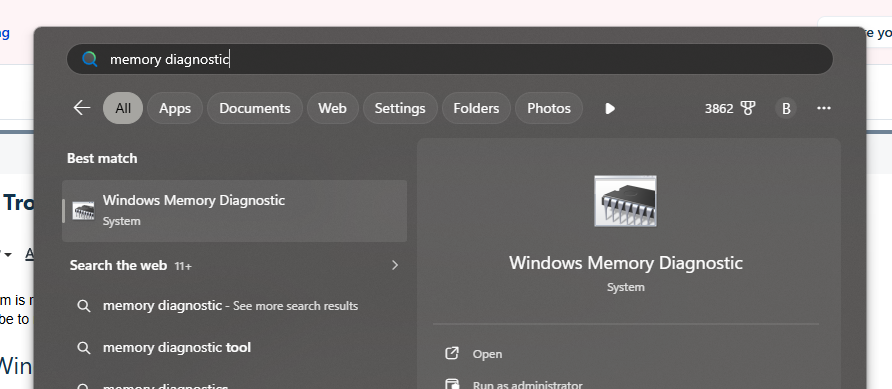
The PC will reboot and run through a series of tests.
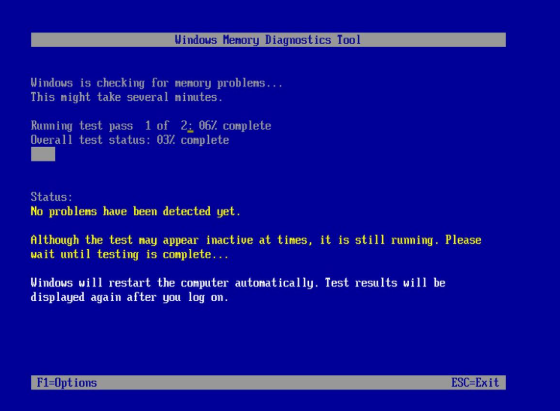
If you do not see the popup instructing you to view results:
1. Click Start.
2. Type: Administrative Tools. Click the found item.
3. Open the Event Viewer tool.
4. Expand Windows Logs and then System on the left hand side of the Event Viewer window:
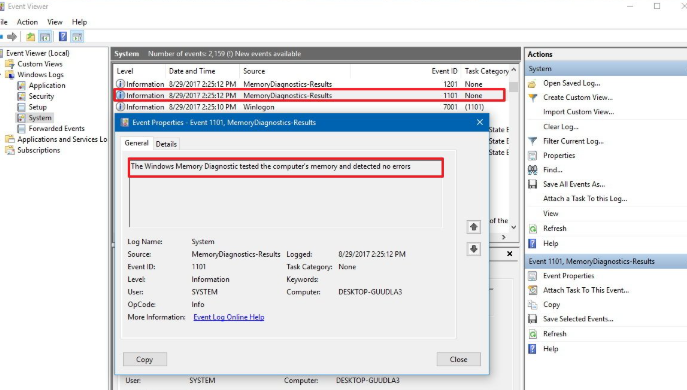
You'll see recent entries marked with the level, "Information" and source "MemoryDiagnostics-Results". This result will report if RAM issues were found.
If the tool reports RAM issues, or if your PC was crashing during these tests, you likely have a faulty RAM stick or sticks installed in your motherboard.
To diagnose a faulty RAM stick
If the PC passes RAM tests with a single stick of RAM installed, shut down the PC, swap that RAM stick for another, and test again, until you see a report of faulty RAM from the Windows Memory Diagnostic tool, or the system crashes stop.
Note that the instructions that follow assume your PC is a desktop or rackmount PC. If you have a RokBox MC Mobile Laptop, the process is different.
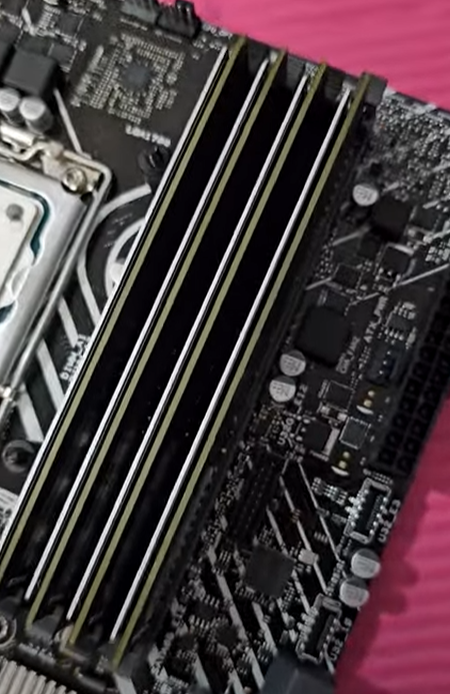
On either side of a RAM stick, you'll find a clip. On some motherboards, you may only find one clip. In either case, press the clip outwards to unseat the RAM stick from the RAM slot. Then gently pull upwards on the RAM stick to remove it from the motherboard.
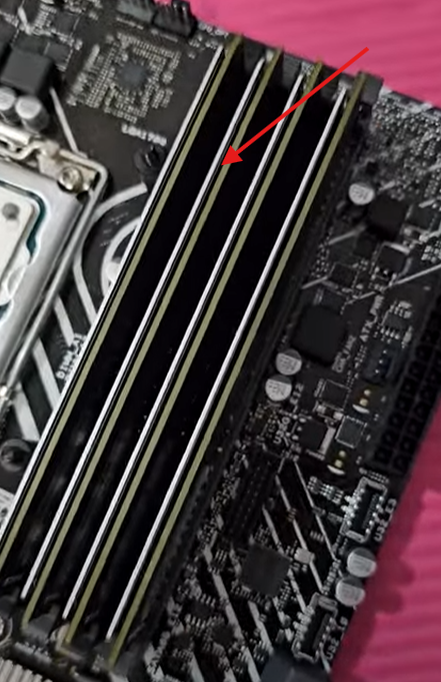
Remove all but the stick of RAM in the second-to-the-right RAM slot (looking from the furthest left RAM stick):
Inserting RAM is done as shown in this video:
With only one RAM stick installed, plug the PC back in, and power-on.
Then, run the Memory Diagnostic Tool again, as outlined above.
If the PC crashes while testing, this stick of RAM may be faulty.
If it does not, let the PC reboot, and then check the log file as outlined above.
If you do not see signs of faulty RAM, shut the PC down, unplug it, hold the power button down for 10 seconds, and remove that stick of RAM.
Replace it with another stick of RAM, and repeat this process for each stick of RAM.
Note that even if you do locate a faulty RAM stick, you should test each stick of RAM individually to rule out other faulty RAM sticks.
Once this process is complete and you have your findings:
- If you PC is currently under OBEDIA Diamond Coverage Warranty, contact PCAudioLabs support to arrange a replacement RAM stick or sticks.
- If your PC is not under warranty, you should still contact our support team. Your RAM may be covered under manufacturer warranty, in which case we can help facilitate a replacement under manufacturer warranty.
- If none of these options are viable, we can instruct you on which RAM stick to purchase to replace your faulty RAM.
Was this article helpful?
That’s Great!
Thank you for your feedback
Sorry! We couldn't be helpful
Thank you for your feedback
Feedback sent
We appreciate your effort and will try to fix the article